Jira Integration
Connect Jira to sync work items, epics, and project data between Zero0 and your Jira workspace.
Integration settings are only visible to users with the Admin role. Regular users cannot access or modify integration configuration.
Choosing how to connect
There are two supported ways to connect Jira. Both are fully supported:
- Connecting with the Zero0 app - install the Zero0 app on your Atlassian site. Zero0 then acts as its own app user, and no webhook is needed. Available to new accounts. Accounts already connected through OAuth are moved to the Zero0 app with Zero0' help.
- Connecting via OAuth - authorize Zero0 with the OAuth popup and configure a webhook yourself. Accounts connected this way keep using it, fully supported, until they move to the Zero0 app.
If you don't see Install Zero0 for Jira & Confluence in Settings → Integrations → Jira, your account uses OAuth; the instructions below still apply.
Connecting with the Zero0 app
Installing the Zero0 app connects Jira and Confluence together. There is nothing to copy and no webhook to set up.
Before you start
You must be an Atlassian site admin to install the app. This is an Atlassian rule for apps that have their own identity. Unlike the OAuth flow, a regular Jira user cannot install it. You also need the Admin role in Zero0 to confirm the connection.
The three steps
- In Zero0: go to Settings → Integrations → Jira and click Install Zero0 for Jira & Confluence. Atlassian's install page opens in a new tab, showing the app "By Zero0" with its permissions, privacy and support links. Choose your site, tick Jira and Confluence together, and install.
- In Jira: open the app's Get started page and click Connect to Zero0. Click Get started on Atlassian's post-install screen if it shows one. Otherwise go to Jira Settings (⚙) → Apps → Manage apps → Zero0 → Get started. Zero0 opens in a new tab.
- In Zero0: a screen asks Connect
<site>to your Zero0 account? Check the site name, then click Confirm.
Atlassian's yellow banner
The install dialog always shows a yellow banner:
Only install apps from developers you trust. Before you install this app on your Atlassian site, please review app permissions and vendor details.
Atlassian shows this for every app installed from outside the Atlassian Marketplace, and the app cannot remove it. It is expected. Review the permissions and vendor details, then continue.
Confirming the site
The confirm screen shows the Atlassian site and your Zero0 account name. Check that the site is the one you mean to connect before clicking Confirm. Confirming binds that site to your Zero0 account. If you did not start this from Jira yourself, click Cancel.
If the link has expired (it lasts 10 minutes), was already used, or isn't recognised, open Get started in Jira again and click Connect to Zero0. If the screen says the account or site is already connected elsewhere, uninstall the app there or contact support.
Once connected, Settings → Integrations → Jira shows the site, the products covered with their install dates, and Acting as: Zero0 app.
What shows as Zero0 and what shows as a person
| In Jira | Shown as |
|---|---|
| Tasks Zero0 creates (reporter) | Zero0 |
| Tasks a user creates (reporter) | That user |
| Comments made from Zero0 | Zero0 |
| Status changes made from Zero0 | Zero0 |
Projects Zero0 cannot access
If Zero0 lists projects it cannot access, the project's permission scheme has removed the atlassian-addons-project-access role. Add that role back to the permission scheme under Project settings → Permissions, and Zero0 can reach the project again.
Confluence
One install covers both products. When you tick Jira and Confluence in the install dialog, Confluence is connected at the same time, and Settings → Integrations → Confluence shows the same site and install dates. You don't connect Confluence separately.
Uninstalling
Uninstall the app from your Atlassian site: Jira Settings (⚙) → Apps → Manage apps, find Zero0, and remove it. This is done in Atlassian, not in Zero0.
Existing OAuth connections
If your account already has an OAuth connection, it keeps working as before: Settings shows it with its status and Disconnect. Zero0 moves existing OAuth accounts to the Zero0 app together with you. Once your account uses the Zero0 app, the webhook controls are hidden because they are not needed.
Connecting via OAuth
This path remains fully supported.
- Navigate to Settings → Integrations → Jira
- Click Connect Jira
- A popup window opens to Jira's OAuth authorization screen
- Grant Zero0 access to your Jira workspace
- The popup closes and the connection status updates to active
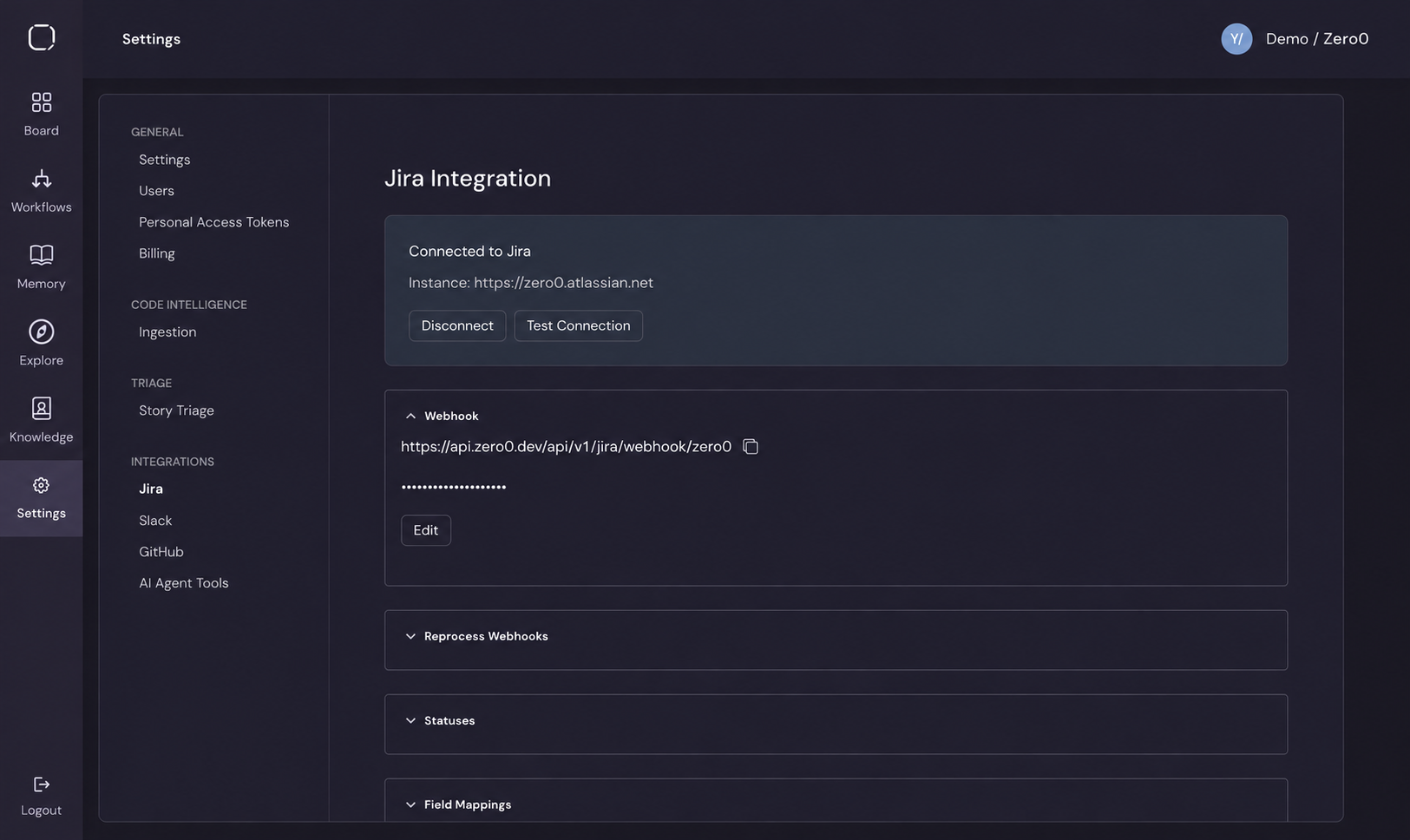
Once connected, you'll see your workspace name and a Last connected timestamp.
Testing the Connection
Click Test Connection to verify that Zero0 can communicate with your Jira instance. A success or error notification appears confirming the result.
Webhook Configuration
After connecting, a webhook section displays:
- Webhook URL - the endpoint Jira sends events to (with a copy button for convenience)
- Webhook Secret - used to verify incoming webhook payloads; click Edit to update
Configure this webhook in your Jira workspace to enable real-time event synchronization.
Syncing Data
Click Sync Epics to pull the latest epic and project data from Jira into Zero0. This is useful after making changes in Jira that you want reflected immediately.
Project Status Audit
The Jira Project Statuses section helps ensure your Jira projects have the status configurations required by Zero0's story lifecycle.
- Select one or more projects from the dropdown
- Click Audit to analyze the status configuration
- The audit identifies any missing statuses or transitions that the AI workflow requires
- Click Auto-fix to automatically create the missing statuses and transitions in Jira
This is important when first connecting a Jira project - the workflow expects specific status transitions (e.g., To Do → Enriched → In Progress → Validation → Done), and the audit ensures your Jira project supports them.
Field and Status Mappings
- Field Mappings - map Jira custom fields to Zero0 fields, ensuring data flows correctly between systems
- Status Mappings - map Jira status names to Zero0's internal status values
Disconnecting
Click Disconnect to revoke the OAuth connection. This stops all synchronization between Zero0 and Jira.